

Before you start
Before you begin, make sure you have:- Make.com account
- CatchAll API key (obtain from platform.newscatcherapi.com)
Install app
The CatchAll app is available by invitation. Use the link below to install it in your Make.com organization.1
Access installation page
Open the CatchAll app invitation link in your browser.
2
Install app
On the installation page, click Install to add CatchAll to your Make.com
organization.
3
Verify installation
The app is now available in your scenario editor. When you search for modules,
NewsCatcher-CatchAll appears with an
Invited badge.Configure connection
Set up your API key to authenticate CatchAll modules.1
Add CatchAll module
Click + in any scenario, search NewsCatcher CatchAll, and select a module.
2
Create connection (first time only)
When you add your first CatchAll module, a connection dialog appears
automatically:
- Click Create a connection
- Enter a connection name
- Paste your CatchAll API key into the API Key field
- Click Save
3
Reuse connection
The connection is now available for all CatchAll modules in your scenarios.
Select it from the Connection dropdown in each module.
Available modules
CatchAll modules are organized into Actions and Searches. Actions perform operations, while Searches retrieve data.Actions
| Module | Description | Endpoint |
|---|---|---|
submit-query | Create a new CatchAll job | /catchAll/submit |
create-monitor | Schedule recurring jobs | /catchAll/monitors/create |
create-monitor-with-webhook | Schedule recurring jobs with webhook | /catchAll/monitors/create |
enable-monitor | Resume a paused monitor | /catchAll/monitors/{id}/enable |
disable-monitor | Pause a running monitor | /catchAll/monitors/{id}/disable |
The
create-monitor-with-webhook module supports webhook URL and HTTP method.
For advanced webhook configuration (custom headers, query parameters, or basic
auth), use the API directly.Searches
| Module | Description | Endpoint |
|---|---|---|
search-job-id | Check job processing status | /catchAll/status/{job_id} |
pull-data | Retrieve completed job results | /catchAll/pull/{job_id} |
get-monitor-schedule | List monitor execution history | /catchAll/monitors/{id}/jobs |
pull-monitor-results | Get aggregated monitor records | /catchAll/monitors/pull/{id} |
Jobs workflow
Build a scenario that submits a CatchAll job, waits for completion, and sends results via email.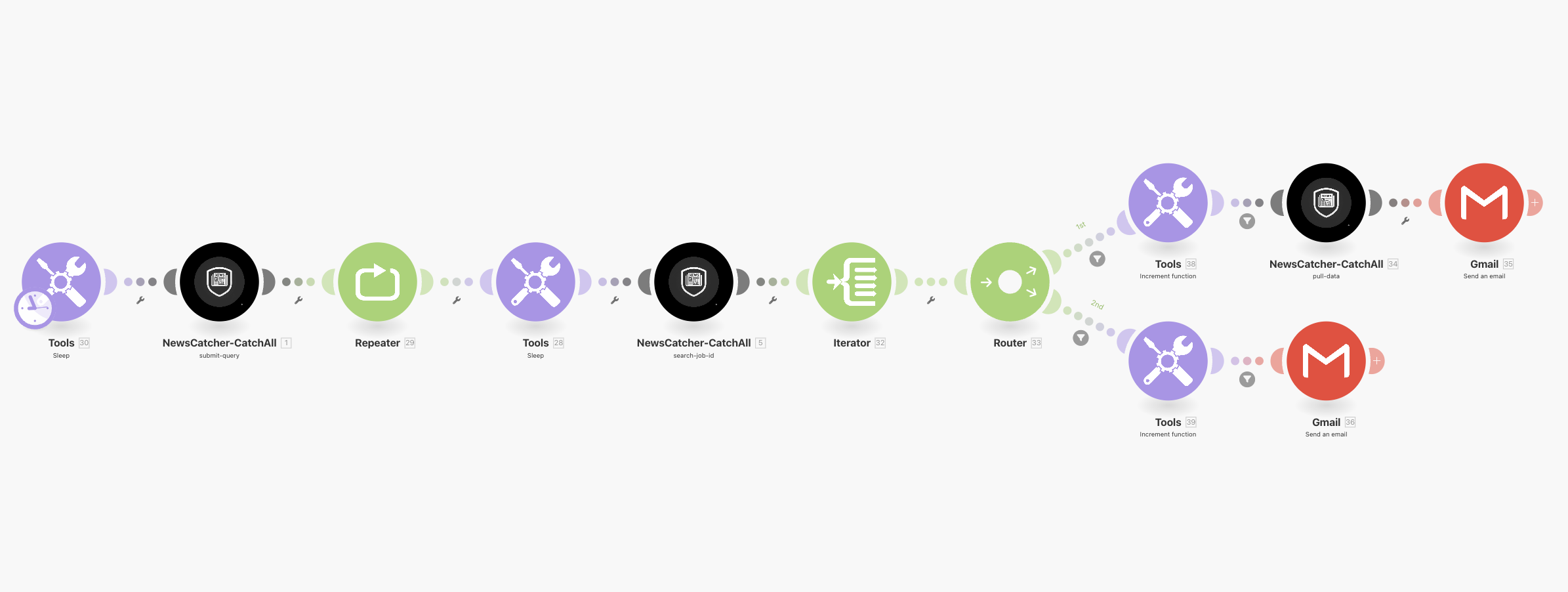
Want to skip manual setup? Import the Jobs demo scenario directly into your Make.com account.
Add modules
1
Add Sleep module
Add Tools > Sleep:
- Delay:
1
2
Submit job
Add NewsCatcher CatchAll > submit-query:
- Connection: Select your CatchAll connection
- Query: Enter a natural language question
- Context (optional): Add focus instructions
- Schema (optional): Specify output format template
3
Add polling loop
Add Flow Control > Repeater:
- Initial value:
1 - Repeats:
10
4
Wait before check
Add Tools > Sleep:
- Delay:
30
5
Check status
Add NewsCatcher CatchAll > search-job-id:
- Connection: Select your CatchAll connection
- Job ID: Drag
job_idfrom the submit-query module
6
Add Iterator
Add Flow Control > Iterator:
- Array: Drag
stepsfrom the search-job-id module
7
Add Router
Add Flow Control > Router to handle different job states.
Configure routes
The Router evaluates job status and directs execution to one of two routes.1
Route 1: Job complete
Configure the first route:
- Click the route path to open filter settings
- Label:
Complete - Set as fallback:
No - Condition (Add two conditions with AND):
- First condition: Drag
statusfrom Iterator output- Operator:
Text operators: Equal to - Value:
completed
- Operator:
- Click Add AND rule
- Second condition: Drag
completedfrom Iterator output- Operator:
Boolean operators: Equal to - Value:
true
- Operator:
- First condition: Drag
- Click Save
2
Route 2: Job failed
Configure the second route:
- Click the route path to open filter settings
- Label:
Failed - Set as fallback:
No - Condition (Add two conditions with AND):
- First condition: Drag
statusfrom Iterator output- Operator:
Text operators: Equal to - Value:
failed
- Operator:
- Click Add AND rule
- Second condition: Drag
completedfrom Iterator output- Operator:
Boolean operators: Equal to - Value:
true
- Operator:
- First condition: Drag
- Click Save
If neither route condition is met, the Repeater continues to the next
iteration automatically.
Add route actions
1
Complete route actions
On the Complete route path:
- Add Tools > Increment function:
- Reset a value:
After one cycle
- Reset a value:
- Add a filter to the connection line after Increment:
- Drag the increment value (labeled
i) from Increment function output - Operator:
Text operators: Equal to - Value:
1The filter ensures the email sends only once when the route first triggers.
- Drag the increment value (labeled
- Add NewsCatcher CatchAll > pull-data:
- Connection: Select your connection
- Job ID: Drag
job_idfrom submit-query module
- Add Gmail > Send an Email and configure it to send results to your email address
2
Failed route actions
On the Failed route path:
- Add Tools > Increment function:
- Reset a value:
After one cycle
- Reset a value:
- Add a filter to the connection line after Increment:
- Drag the increment value (labeled
i) from Increment function output - Operator:
Text operators: Equal to - Value:
1
- Drag the increment value (labeled
- Add Gmail > Send an Email to notify yourself of the failure
Test Jobs workflow
1
Run scenario
Click Run once at the bottom of the editor.
2
Monitor execution
Watch the scenario execute. The Repeater checks job status every 30 seconds
(up to 10 times, 5 minutes maximum) until the job completes or fails.
3
Check email
When complete, you receive an email with the job results.
Monitors workflow
Build a scenario that creates a monitor from a completed job, verifies creation, and retrieves the initial results.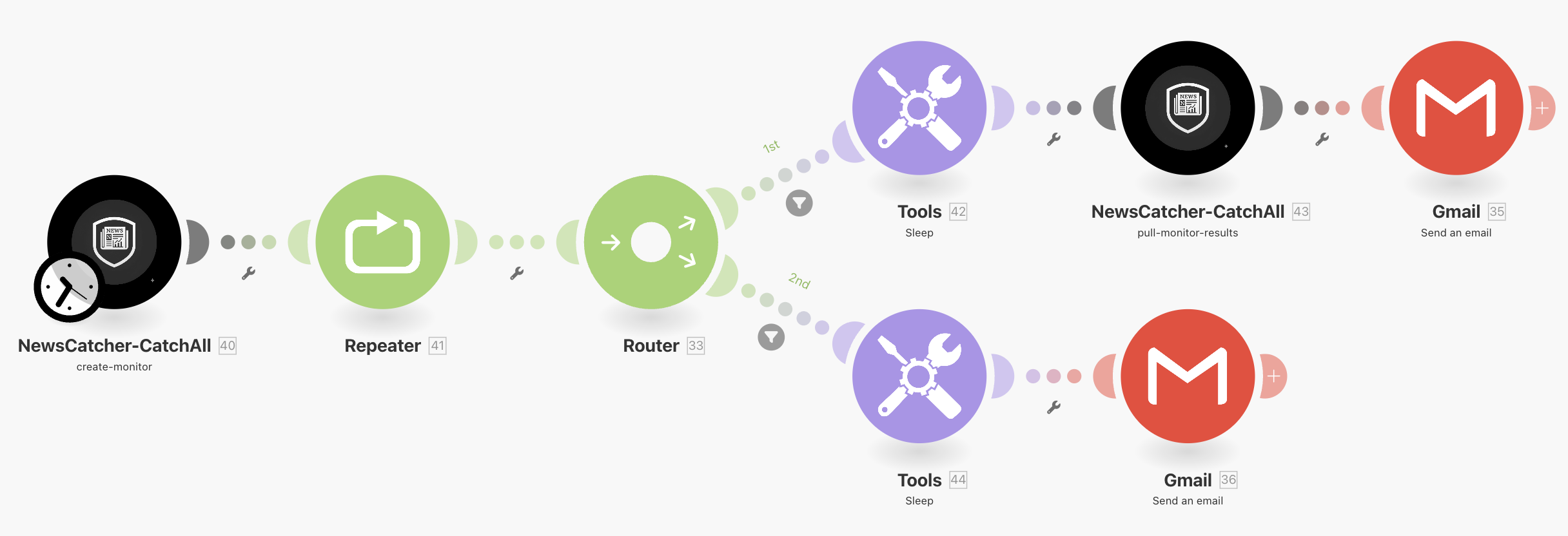
Want to skip manual setup? Import the Monitors demo scenario directly into your Make.com account.
Add modules
1
Create monitor
Add NewsCatcher CatchAll > create-monitor:
- Connection: Select your CatchAll connection
- Reference Job ID: Enter the job ID from a completed job
- Schedule: Enter schedule in natural language
2
Add Repeater
Add Flow Control > Repeater:
- Initial value:
1 - Repeats:
3
3
Add Router
Add Flow Control > Router to handle creation success or failure.
Configure routes
The Router evaluates monitor creation status and directs execution to one of two routes.1
Route 1: Monitor created
Configure the first route:
- Click the route path to open filter settings
- Label:
Success - Set as fallback:
No - Condition:
- Drag
statusfrom create-monitor output - Operator:
Text operators: Equal to - Value:
Monitor Created Successfully
- Drag
- Click Save
2
Route 2: Creation failed
Configure the second route:
- Click the route path to open filter settings
- Label:
Failed - Set as fallback:
No - Condition:
- Drag
statusfrom create-monitor output - Operator:
Text operators: Not equal to - Value:
Monitor Created Successfully
- Drag
- Click Save
Add route actions
1
Success route actions
On the Success route path:
- Add Tools > Sleep:
- Delay:
1
- Delay:
- Add NewsCatcher CatchAll > pull-monitor-results:
- Connection: Select your connection
- Monitor ID: Drag
monitor_idfrom create-monitor module
- Add Gmail > Send an Email to send initial monitor results
2
Failed route actions
On the Failed route path:
- Add Tools > Sleep:
- Delay:
1
- Delay:
- Add Gmail > Send an Email to notify yourself of the creation failure
Test Monitors workflow
1
Prepare reference job
You need a completed job ID to create a monitor. If you don’t have one, run a
Jobs workflow first to generate a job ID.
2
Run scenario
Click Run once at the bottom of the editor.
3
Monitor execution
The Router evaluates the creation status immediately.
4
Check email
You receive an email confirming monitor creation success or failure.
Next steps
After verifying that your integrations work, replace the Gmail module with your destination system:- Google Sheets to save records to spreadsheet.
- Airtable to store structured data.
- Webhook to send to another service.
- Slack/Discord to post notifications.